Managing Your Goals
Daily POS automatically calculates daily sales goals for each of your locations based on your historical data. This article explains how goals work, how to adjust them at the month or day level, and what happens when you make a change mid-year.
How goals are calculated
Goals are calculated automatically based on the settings you defined during onboarding:
- Calculation mode: either Last year same month (your goal mirrors what you made in the same month last year), or AI-powered distribution based on sector trends (an algorithm redistributes goals across the month factoring in the number of Saturdays, your store's location, sales periods, public holidays, and sector-specific dynamics).
- Returns: whether last year's returns are included or excluded from the baseline.
- VAT: whether goals are based on revenue with or without tax.
Goals roll continuously throughout the year. There is no manual reset: each day's goal is always derived from your historical data and any overrides you have applied.
> If you need to change your calculation mode or VAT setting after onboarding, contact us at support@prismm.studio.
Adjusting targets manually
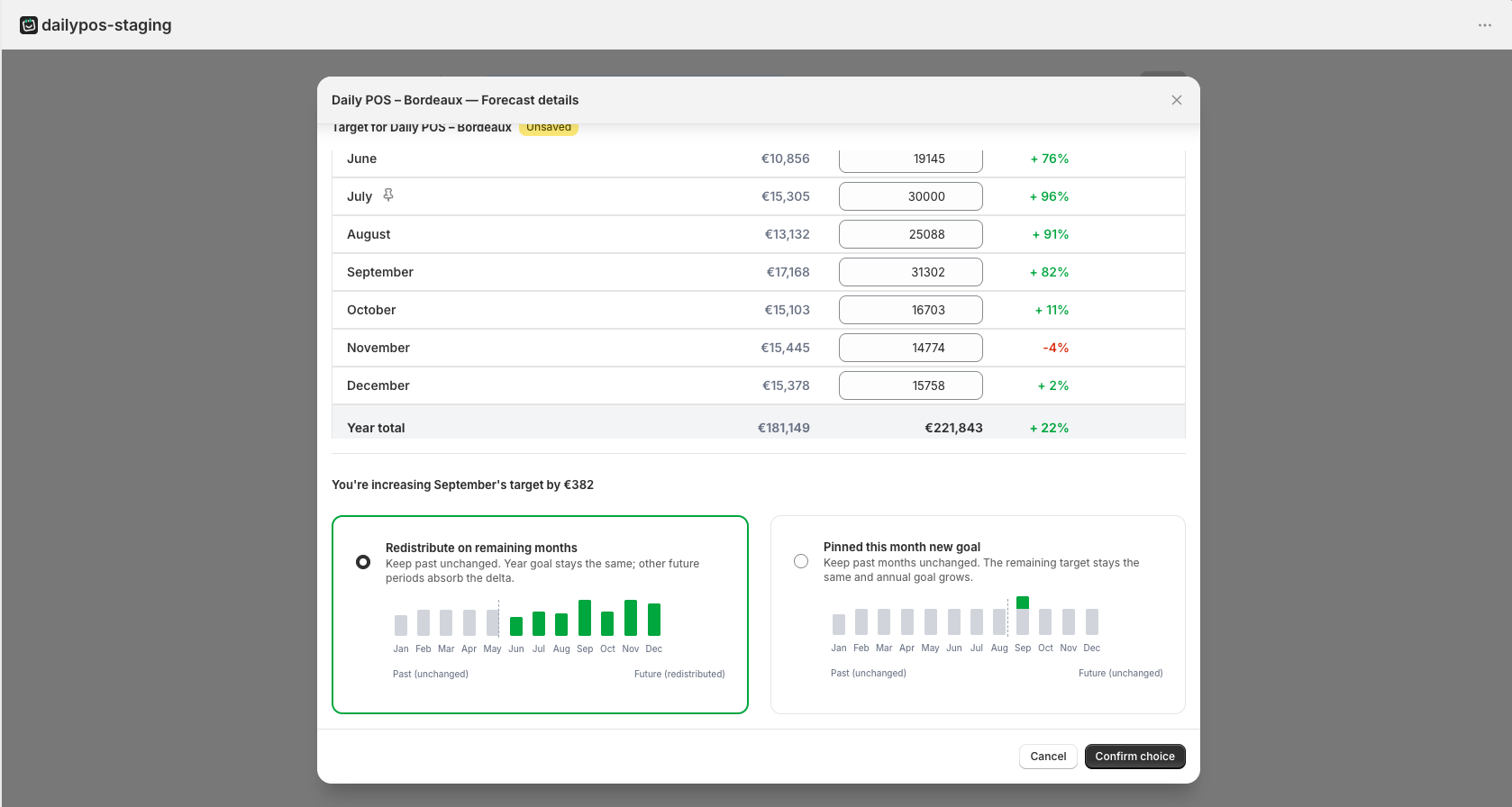
You can override any future month or day directly from Goal Settings. Open a location's Forecast details, find the period you want to change, and enter a new target. Past months and past days are locked.
To access days, click on "Details" from inside a month.
If you change a monthly our a daily goal, Daily POS asks how to handle the impact on your annual goal:
- Redistribute on remaining months/days: the year goal stays the same; the difference is spread across other future months.
- Pin this month/day new goal: the other months are untouched; your annual goal adjusts instead.
Any manual entry becomes the new default for that period until you change it again.
Pro plan: additional goal metrics
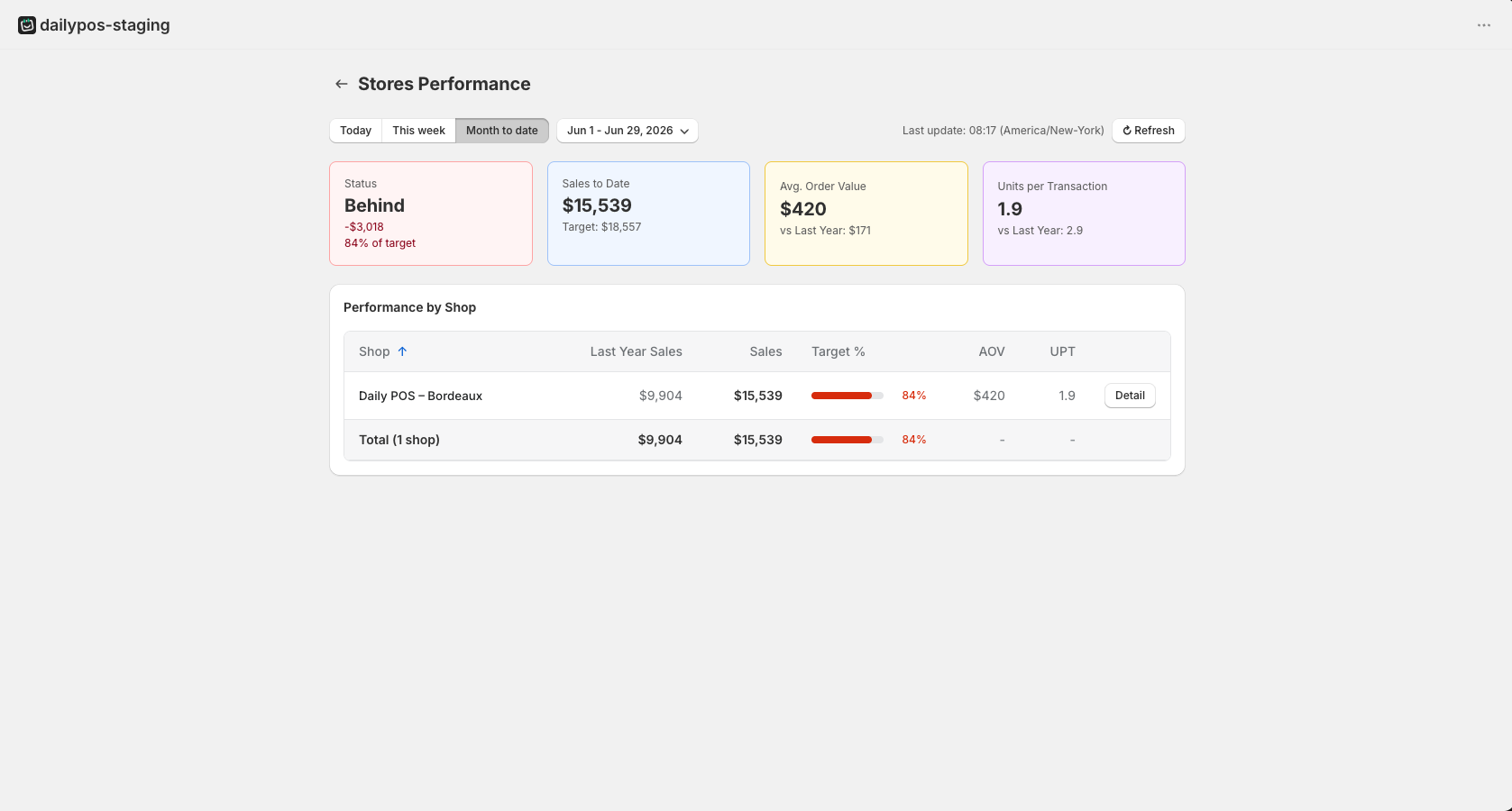
On the Pro plan, goal tracking extends beyond revenue. You can also monitor targets for:
- Average order value (AOV)
- Units per transaction (UPT)
These metrics are visible alongside the revenue goal on your POS tile and in the back office dashboard.
When you're on the Pro plan, you'll soon be able to add custom events to your calendar and set a positive or negative impact on your daily revenue targets.